DeckLink Setup
Install your supported DeckLink card according to its hardware instructions, then install Blackmagic Desktop Video for your operating system. This package provides the capture drivers and setup utility used to check the card.
Find the Desktop Video download
Open Blackmagic Design's Capture and Playback support page. If you start from the main Support Center, select Capture and Playback in the product-family grid.
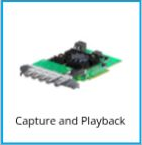
Under Latest Downloads, find a Desktop Video entry labelled Software Update. Use Read more to check compatibility with your card and operating system. The Desktop Video SDK entry is for developers; it is not the driver installer you need here.
Choose Windows x86 for Windows or Linux for Linux on that Desktop Video entry.
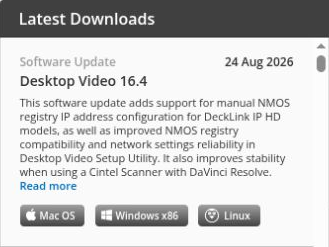
The operating-system buttons are at the bottom of the Desktop Video entry. The screenshot shows version 16.4; use a release compatible with your system.
In the download form, Download Only appears at the bottom left if you want to download without registering your details.
Continue with Windows or Linux below.
Windows
- Close Void Video and any other capture applications.
- Extract the downloaded Desktop Video archive and run its installer.
- Follow the installer prompts and restart Windows if requested. Complete any device-update steps requested by Desktop Video.
- Open Blackmagic Desktop Video Setup and follow Verify the card and input.
Linux
Setting up a new PC? Start with Linux Installation and Linux GPU Drivers, then return here for the capture driver.
- Close Void Video and any other capture applications.
- Extract the downloaded Desktop Video Linux archive.
- Open the included ReadMe and follow the instructions for your distribution and architecture. On Debian, choose the supplied Debian packages for
x86_64; install the Desktop Video driver and, if you use a desktop, the setup utility. Follow the ReadMe for dependencies and command-line installation. - Check that driver installation completes successfully, then restart or complete device-update steps as instructed by the package.
Blackmagic's Desktop Video manual includes Linux installation instructions. Check the release's supported distributions and kernels before installing; Void Video's Linux requirements do not guarantee compatibility with every Desktop Video driver release.
If your Linux machine has no desktop, use the command-line instructions and utilities documented in the package's ReadMe. You can select the capture input in Void Video; the graphical setup utility below is a useful check when available.
Verify the card and input
Connect an active HDMI or SDI source to the card.
On a desktop system, open Blackmagic Desktop Video Setup. Confirm that it detects the expected card and that the input connector and signal format match your source.
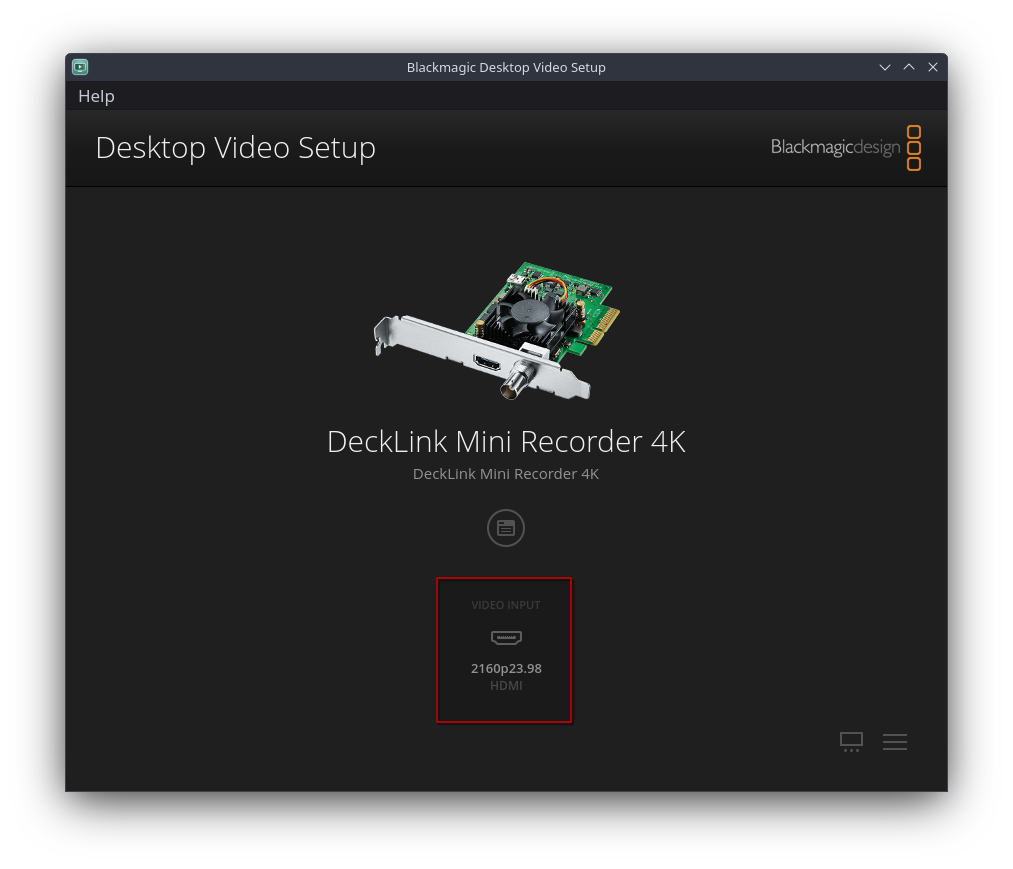
The Video Input area shows the incoming format and connector. Your card and source format may differ from this example.
Close other capture applications before opening Void Video. If you have not installed it yet, return to Installation → Install Void Video.
Start Void Video, press M, and open Capture → Input. Select your DeckLink card and the connector you connected. Confirm that the picture appears.
If Desktop Video cannot detect the card, resolve the hardware or driver setup first. If the card is present but there is no picture, check the selected connector and whether the source resolution and frame rate are supported by that card.
Continue with First Run to configure the output and screen.
Download-page screenshots captured from Blackmagic Design on October 3, 2026. Click a screenshot to enlarge it.