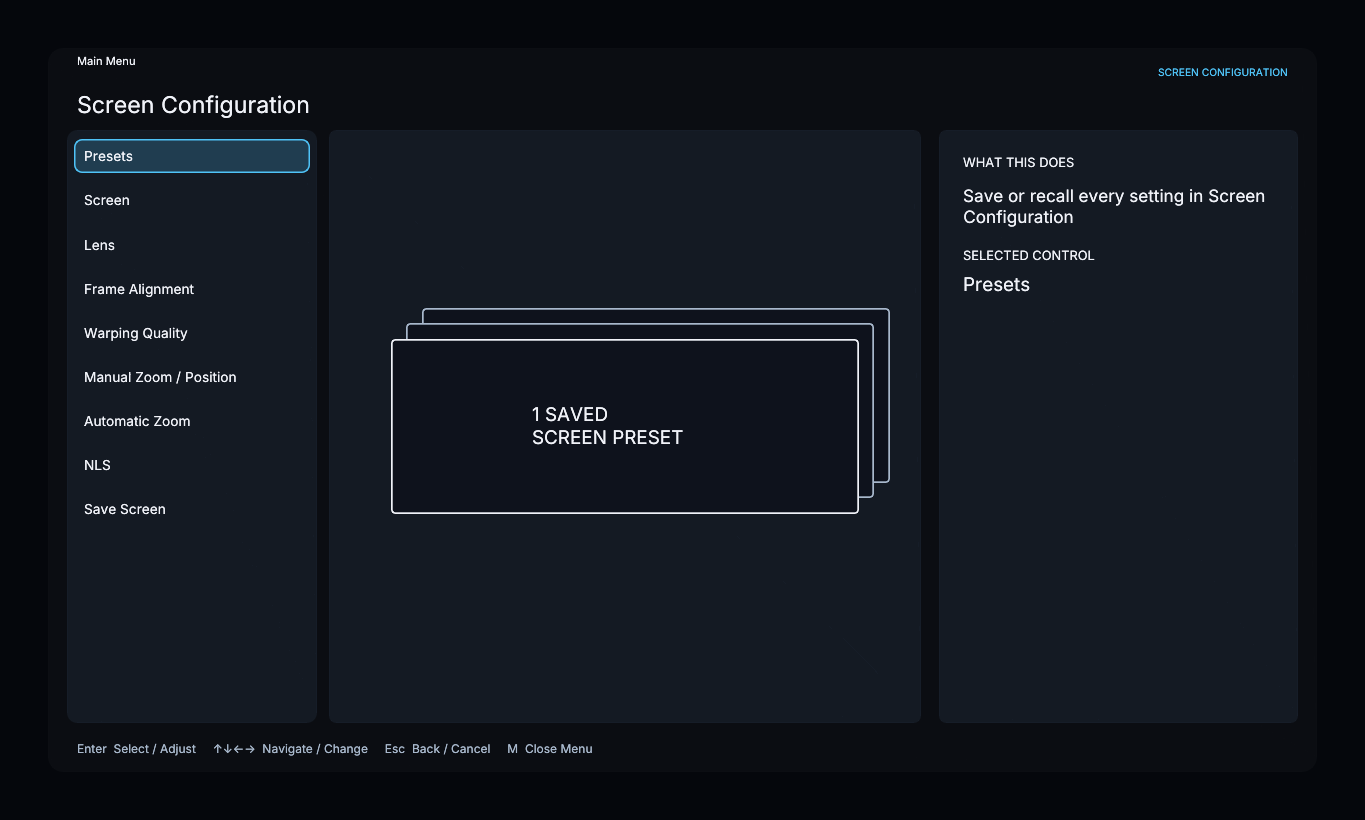
Screen Configuration
Screen Configuration follows one forward-moving journey. Each page in this guide matches one stage of the menu.
Setup flow
Physical Screen Choose Wide or Scope, the exact aspect ratio, and Flat or Curved.
↓
Projector & Optics Choose the projector's native raster and whether an anamorphic lens is installed.
↓
Correction Path when applicable Follow only the Anamorphic Lens Setup, Physical Lens Alignment, Lens Distortion Correction, and Curved-Screen Correction pages required by the saved equipment.
↓
Frame Calibration Align the complete screen boundary and select Save Screen.
↓
Content Presentation Choose one branch and configure its dedicated controls: Fit, Zoom, or NLS.
↓
Automatic Behavior Optionally control changing aspect ratios, subtitles, and source on-screen displays, then save the completed configuration.
Controls used throughout setup
| Control | Action |
|---|---|
| Arrow keys | Move between choices or change a selected value |
| E | Select, begin adjusting, or finish adjusting |
| B | Go back or cancel the current adjustment |
The panel on the right explains the selected control. Saving a completed stage advances to the next stage automatically.
Change a saved screen
The complete flow is for first-time setup. After Save Screen and Save Presentation, opening Screen Configuration returns to the active-screen summary instead of restarting the wizard.
Select the section you want to change:
- Screen & Surface changes the physical ratio or Flat/Curved selection.
- Projector & Placement changes the native raster, optical path, or screen position.
- Anamorphic Lens Setup, Physical Lens Alignment, and Lens Distortion Correction appear when the saved profile uses an A-Lens.
- Curved-Screen Correction appears when the saved profile uses a curved screen.
- Frame Alignment opens the corner and edge controls directly.
- Presentation Mode changes Fit, Fill/Crop, or NLS.
- Fit Controls, Zoom Controls, or NLS Controls opens the controls for the saved presentation mode.
- Automatic Behavior opens aspect-ratio, subtitle, and source-OSD behavior directly.
Changing an upstream equipment setting can make later calibration invalid. In that case, the menu sends you only through the affected correction and review pages before saving again.