Skip to content

NLS Controls

Use nonlinear stretch (NLS) to trade controlled edge distortion and optional crop for greater screen coverage.

1. Choose acceptable crop

Start with crop before adding stretch. Remove only picture you are comfortable losing and watch the shaded edges in the preview.

The example carries forward a 2.40 screen and 16:9 content. That mismatch creates side bars, so the relevant pre-stretch controls are Top Crop and Bottom Crop. Increasing either crop reduces the side-bar width and therefore reduces the nonlinear stretch needed to reach the screen edges.

NLS crop stage showing the picture removed before stretching

2. Set the stretch areas

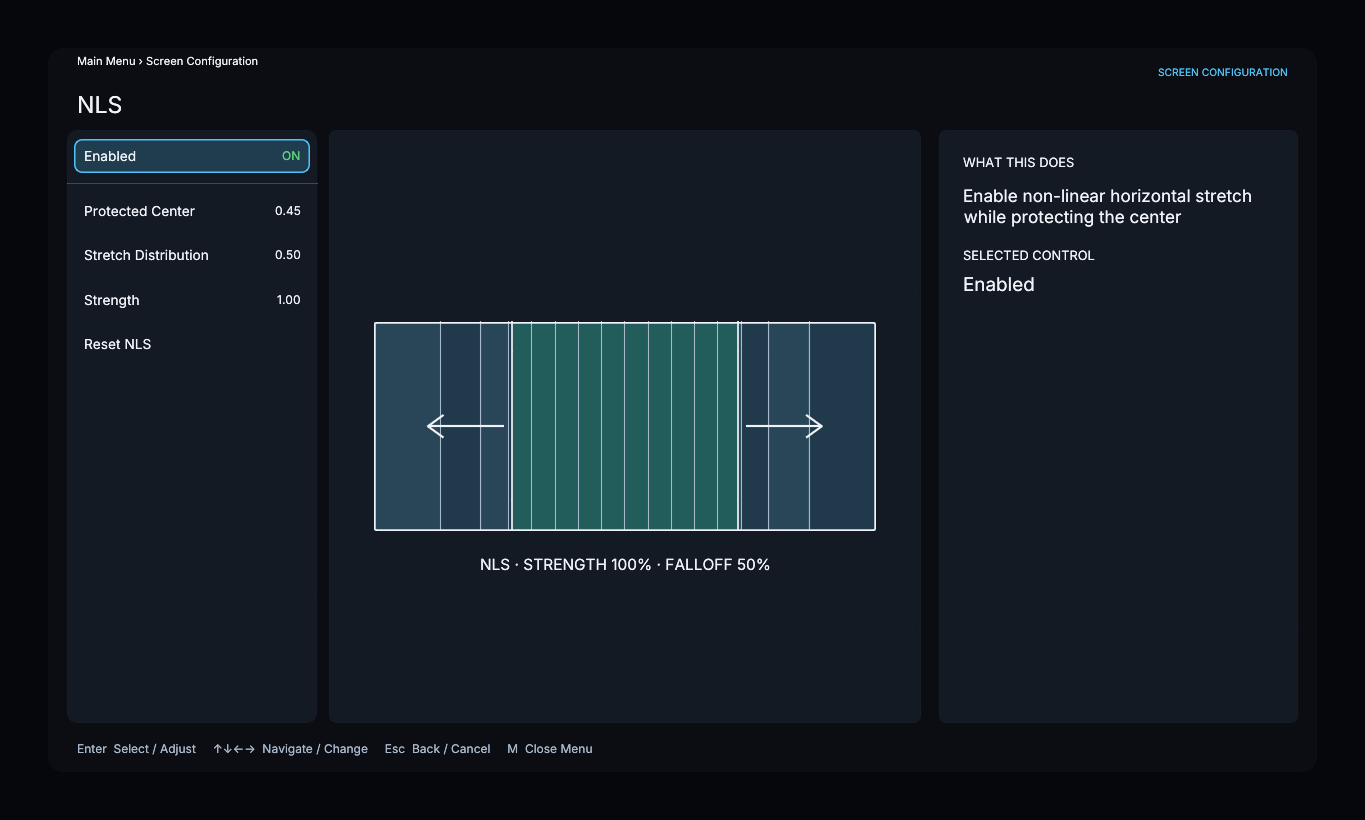
Adjust Protected Center Width to set the undistorted vertical band in the middle of the image. This band is defined on the X axis and extends through the full picture height. Edge Stretch Width controls the transition from that protected band toward the left and right screen edges.

Keep faces, circles, titles, and score graphics inside the least-distorted vertical band while adjusting. Center Stretch determines whether that protected region participates at all.

NLS stretch-area guides around the protected center

3. Set the strength

For the illustrated 16:9-to-2.40 mismatch, increase Horizontal Strength while watching familiar shapes and camera movement. You do not have to fill the screen completely. Lower strength can leave a small amount of side-bar area when full coverage looks unnatural.

Horizontal NLS strength and screen-coverage controls with a live distortion guide

Use Compare frequently to switch between the adjusted result and the unmodified presentation.

Confirm the crop, protected area, strength, and remaining bars, then continue to Automatic Behavior.