Linux Utilities
These optional tools make it easier to manage your Void Video PC and see how hard it is working. Open Konsole in KDE or Terminal in XFCE for the Debian commands below.
SSH: connect from your Windows PC
SSH lets you run commands on the Debian PC from Windows, without moving a keyboard or interrupting the picture. It opens a remote terminal, not a remote desktop. Both computers should be on your home network.
Set up the Debian PC
Install and enable SSH:
sudo apt update
sudo apt install openssh-server
sudo systemctl enable --now ssh
Find your login name and network address:
whoami
hostname -I
Write down your username and the PC's home-network address, such as 192.168.1.50. If several addresses appear, check the connected Ethernet or Wi-Fi entry in the desktop's network settings.
Connect from Windows
Open PowerShell or Windows Terminal on Windows and enter:
ssh [email protected]Replace YOUR_USER and the example address with the Debian PC's details. On the first connection, SSH asks you to confirm the computer's identity. To check the displayed fingerprint, run this on the Debian PC and compare it before accepting:
sudo ssh-keygen -lf /etc/ssh/ssh_host_ed25519_key.pubEnter your Debian login password. Nothing appears while you type it. Once connected, commands run on the Debian PC. You can use htop and nvtop below while Void Video continues playing.
Type exit to disconnect. This does not shut down the Debian PC. If Windows does not recognize ssh, install OpenSSH Client through Windows Optional features. Windows SSH instructions
If the connection fails
- Connection refused: on Debian, run
systemctl status sshto check that SSH is running. Press Q to leave the status screen. - Connection times out: check the address and that both PCs are on the same network. If you enabled a firewall, allow SSH from your home network.
- Permission denied: use your normal Debian username and password.
This setup is for your home network; router port forwarding is not needed. Debian OpenSSH package
htop: CPU and memory usage
Think of htop as a terminal version of Task Manager. We recommend it for all users.
Install it once:
sudo apt install htopOpen it whenever you want to check the PC:
htopThe top of the screen shows CPU and memory usage. The list underneath shows running programs. Press F3 and type VoidVideo to find the application. Press Q to exit htop; Void Video keeps running. htop controls
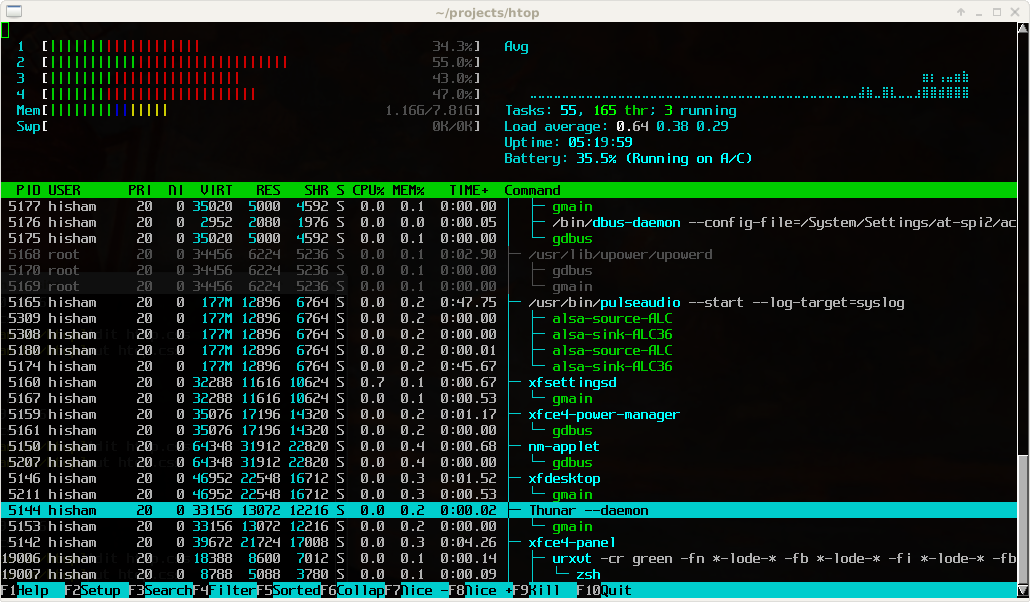
Example from the htop project. Your version and running programs may look different. Click the image to enlarge.
Nvidia graphics cards monitoring
nvtop shows graphics-card activity and memory usage. It is useful for NVIDIA users after installing the graphics driver. Available readings depend on the card and driver.
Install it once:
sudo apt install nvtopOpen it while Void Video is playing:
nvtopLook at GPU activity and graphics-memory use as you change processing settings. Press Q to exit. If no GPU appears, complete the graphics driver checks first. nvtop controls
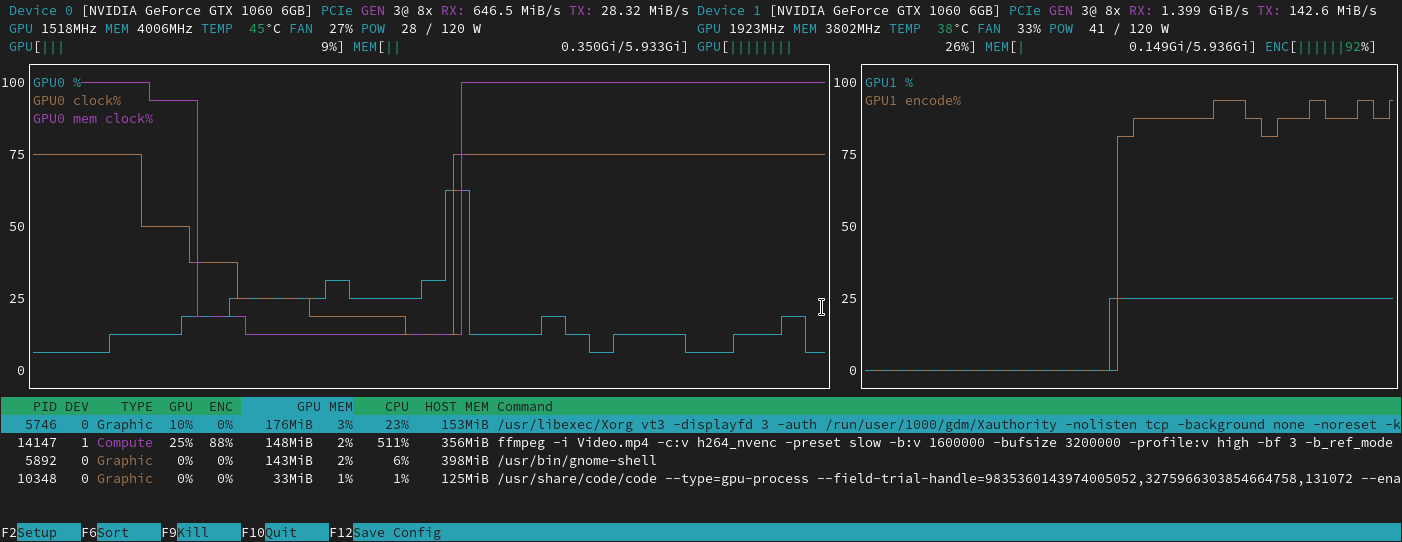
Example from the nvtop project. This example shows two graphics cards; your screen will reflect your installed hardware. Click the image to enlarge.
Useful keys
| Key or command | What it does |
|---|---|
| Ctrl+Shift+V | Paste into Konsole or XFCE Terminal |
| Ctrl+Shift+C | Copy selected terminal text |
| Ctrl+C | Stop most commands running in the terminal; let installations finish normally |
| Q | Close htop or nvtop without stopping Void Video |
exit | Leave the SSH session |
| F9 in Void Video | Quit Void Video |