Magewell Setup
For Pro Capture and Eco Capture cards, follow the section for your operating system: Windows or Linux. Install the card according to its hardware instructions before installing the driver.
| Operating system | What to install |
|---|---|
| Windows | Card driver and Magewell Capture Runtime |
| Linux | Card driver; the Void Video package includes the capture runtime |
Windows
You do not need a development environment or SDK developer tools.
1. Install the capture driver
Close Void Video.
Open Magewell Downloads and choose the product family printed on your card, such as Pro Capture or Eco Capture.
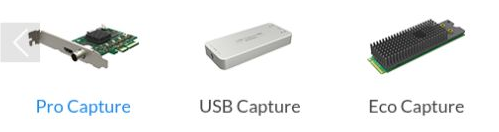
Select Driver → Windows. For a Pro Capture card on Windows 10 or 11, look for Pro Capture Driver for Win 10/11. You can also open the Pro Capture Windows driver page directly.
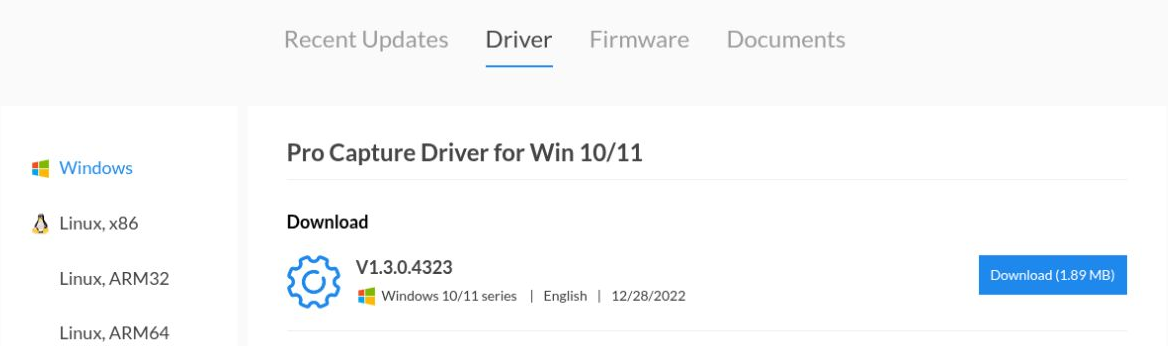
Pro Capture example: select Driver, then Windows, then Download beside the driver for your Windows version. Use your own product family's page if it differs.
Download and install that driver. Follow the installer instructions and restart Windows if requested.
Start from the Driver tab
The product page may open on Recent Updates, where the newest entry can be a Linux driver or firmware. Select Driver → Windows before choosing a download.
2. Install the Capture Runtime
The runtime is a separate prerequisite from the capture driver. Magewell distributes its installer through the Windows MWCapture SDK package.
Download the Windows package
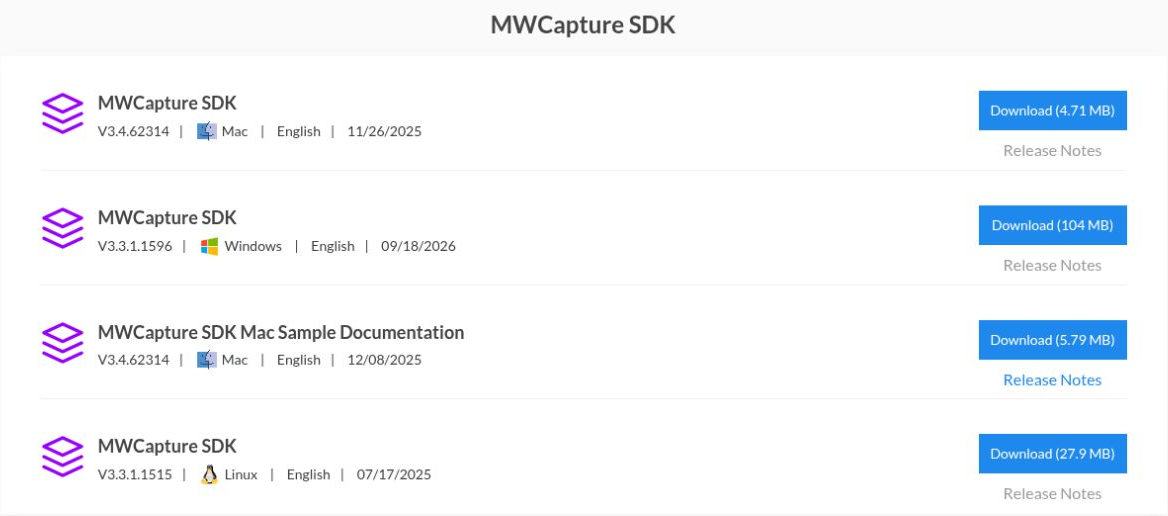
Open Magewell's MWCapture SDK downloads. If the link opens at the top, scroll to MWCapture SDK.
Find the MWCapture SDK row marked Windows, then click the Download button on that same row.

Detail crops from the same row: match the Windows label, then use its Download button. Version numbers, dates, and sizes can change. Click any screenshot to enlarge it.
See where the Windows row appears in the SDK section
Run both installers
Extract the downloaded archive and run MWCaptureSDK.exe. Note the SDK installation folder you choose.
Open that installed SDK folder, then its Runtime subfolder. This folder is created by the package installation; look there after running
MWCaptureSDK.exe.Run MWCaptureRT.exe and complete the runtime installation.
textSDK installation folder └── Runtime └── MWCaptureRT.exe
Installing the SDK package gets you to the runtime installer; run MWCaptureRT.exe as well. You do not need to compile anything or install Visual Studio. Use the runtime installer rather than copying individual DLLs into the Void Video folder. Magewell documents the location in its Capture Runtime instructions.
Void Video needs the runtime's LibMWCapture.dll to discover and open Magewell inputs. The Void Video Windows package does not currently include the Magewell runtime.
Linux
Setting up a new PC? Start with Linux Installation and Linux GPU Drivers, then return here for the capture driver.
Close Void Video. Open Magewell Downloads and select your card's product family: Pro Capture or Eco Capture.
Select Driver → Linux, x86 for a PC using the Void Video Linux
x86_64package. The vendor labels this driver family “Linux, x86”. For Pro Capture, use the Linux driver page.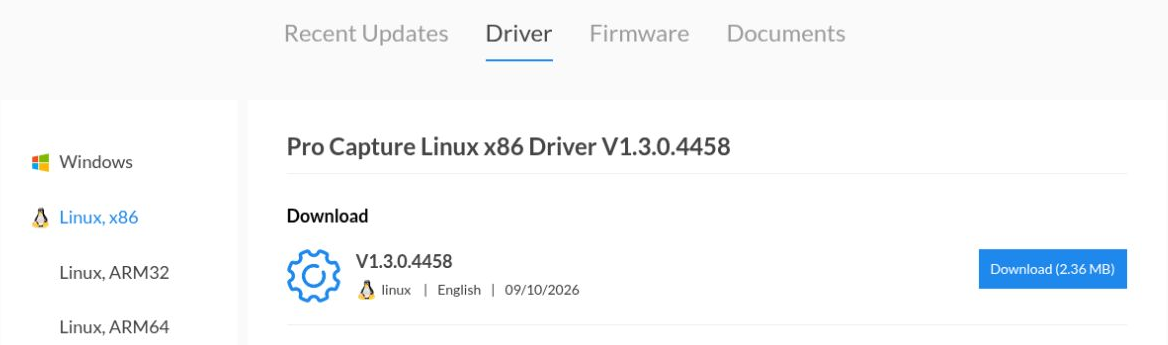
Choose the driver for your card family and architecture. The screenshot shows the Pro Capture PC driver; version numbers can change.
Download and extract the driver archive. Follow the installation instructions included in that archive for your distribution and kernel, including any build prerequisites. Check that installation completes successfully and restart if instructed.
The Void Video Linux package includes the Magewell capture runtime. You do not need the Windows SDK package or MWCaptureRT.exe on Linux.
Verify capture
Return to Installation → Install Void Video if you have not installed the application yet. Then:
- Connect an active video source to the Magewell card.
- Start Void Video after completing the driver installation (and the Capture Runtime on Windows).
- Press M to open the menu, then choose Capture → Input. Select your Magewell card and connector, and check that the source picture appears.
If the input is missing:
- Windows: confirm that both the card driver and MWCaptureRT.exe finished installing, then close and reopen Void Video. A working driver alone does not confirm that the Capture Runtime is installed.
- Linux: check the driver installer's output for errors and confirm the installed driver supports your running kernel. Resolve driver installation errors before retrying Void Video.
Check the EDID in the web interface
After selecting the Magewell input, open Video → EDID in the web interface to inspect and edit the capabilities advertised to your HDMI source. The card is read automatically. Use Upload to load a .bin file, change the feature controls, or use Download to save the EDID currently shown. Edits stay in a draft until you select Apply to card; there is no automatic repair.
See the Web Interface guide → Edit the capture EDID for connection instructions and the read/write workflow.
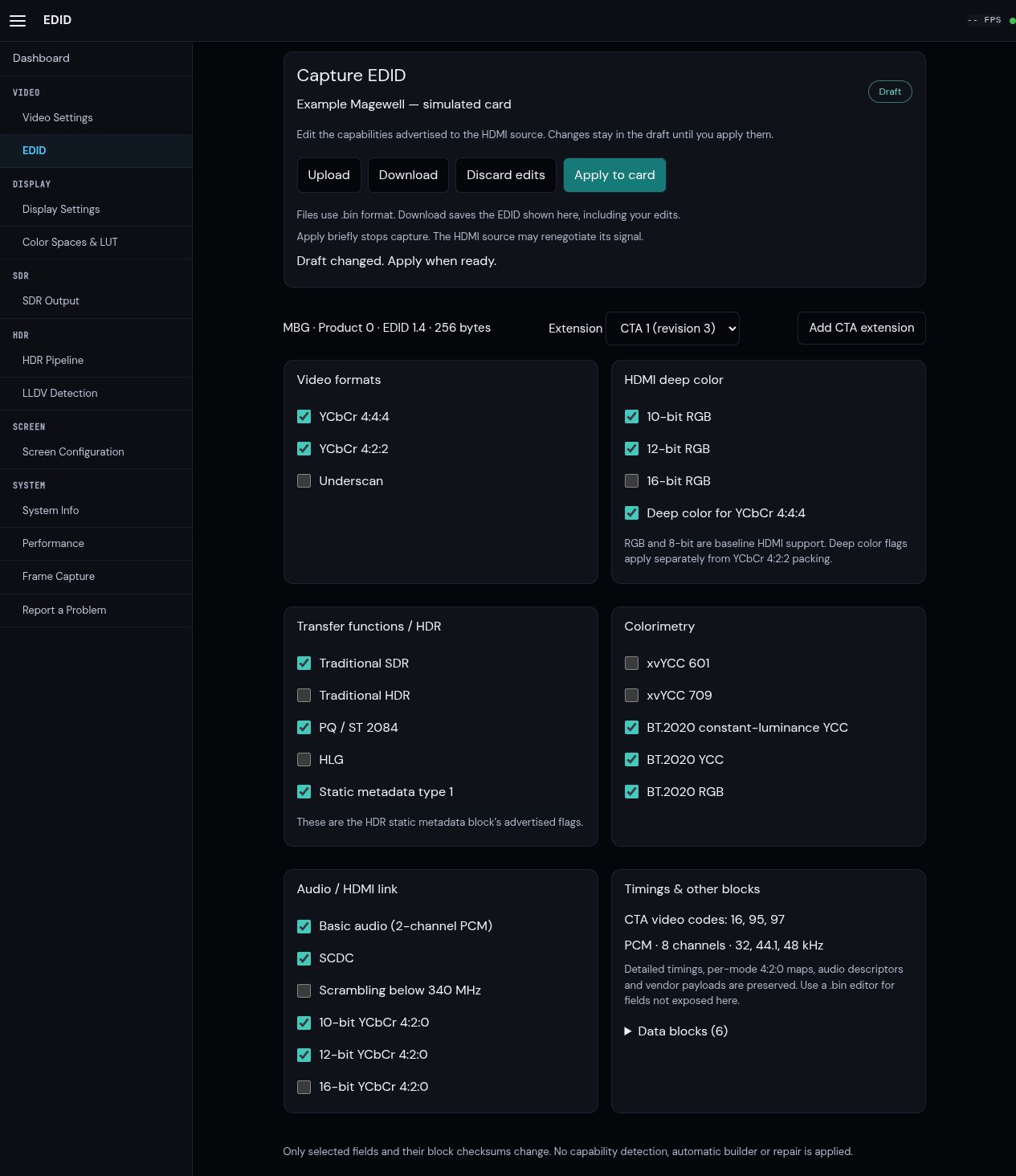
Example using a simulated Magewell card. The selected features illustrate the editor, not a recommended EDID or a physical card's verified capabilities. Click the screenshot to enlarge it.
Continue with First Run to configure the output and screen.
Download-page screenshots captured from Magewell on October 3, 2026. Click a screenshot to enlarge it.