Screen Presets
A screen preset saves the Screen Configuration as one named setup: the physical screen ratio, lens settings, frame alignment, manual geometry, Automatic Zoom, and NLS.
Presets are useful when the same processor drives more than one screen setup or when you want a known-good configuration that can be restored after adjustments. You can create as many named presets as needed.
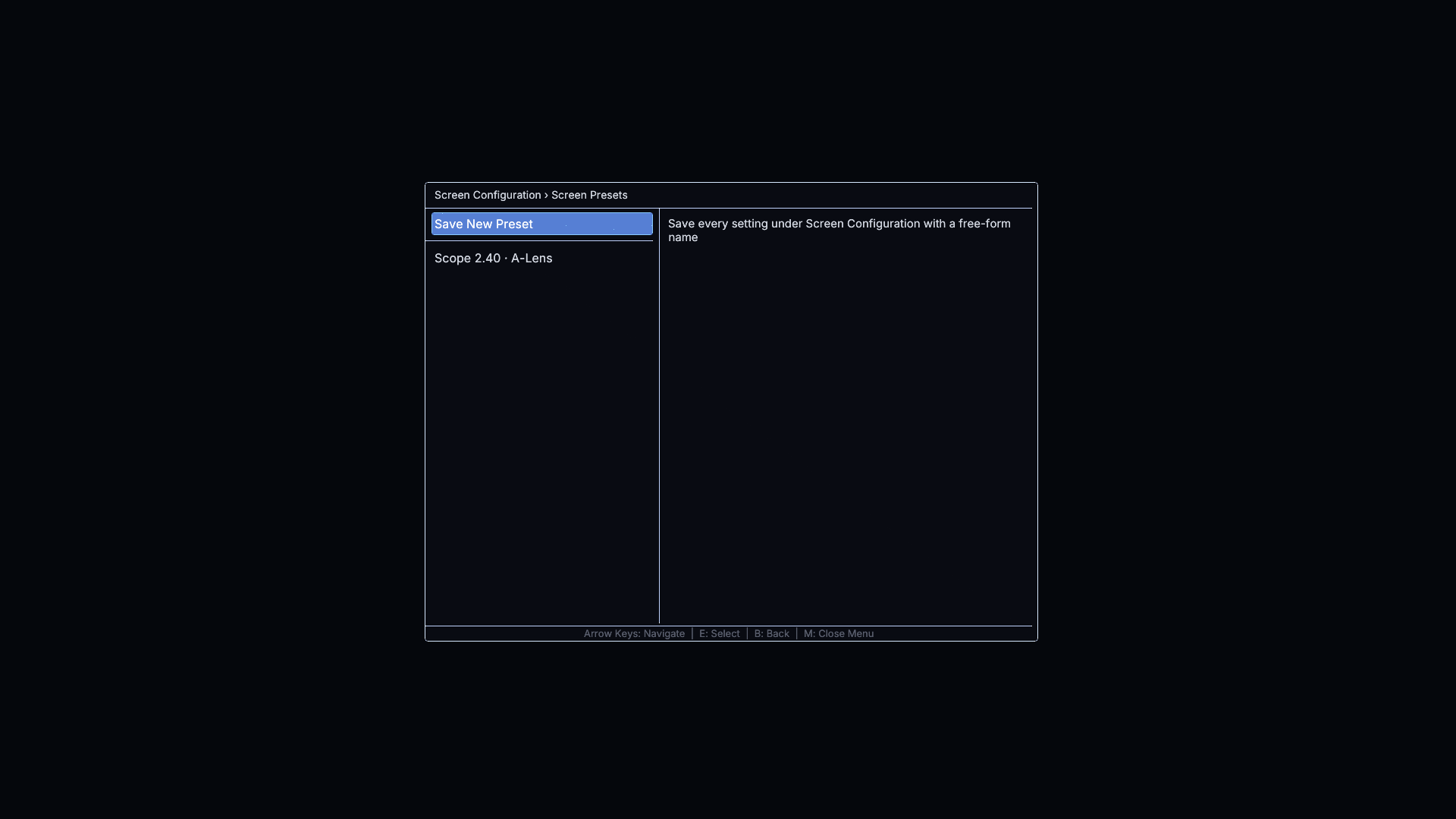
Save a new preset
- Configure the Screen Configuration sections you need.
- Open Screen Configuration → Presets.
- Select Save New Preset.
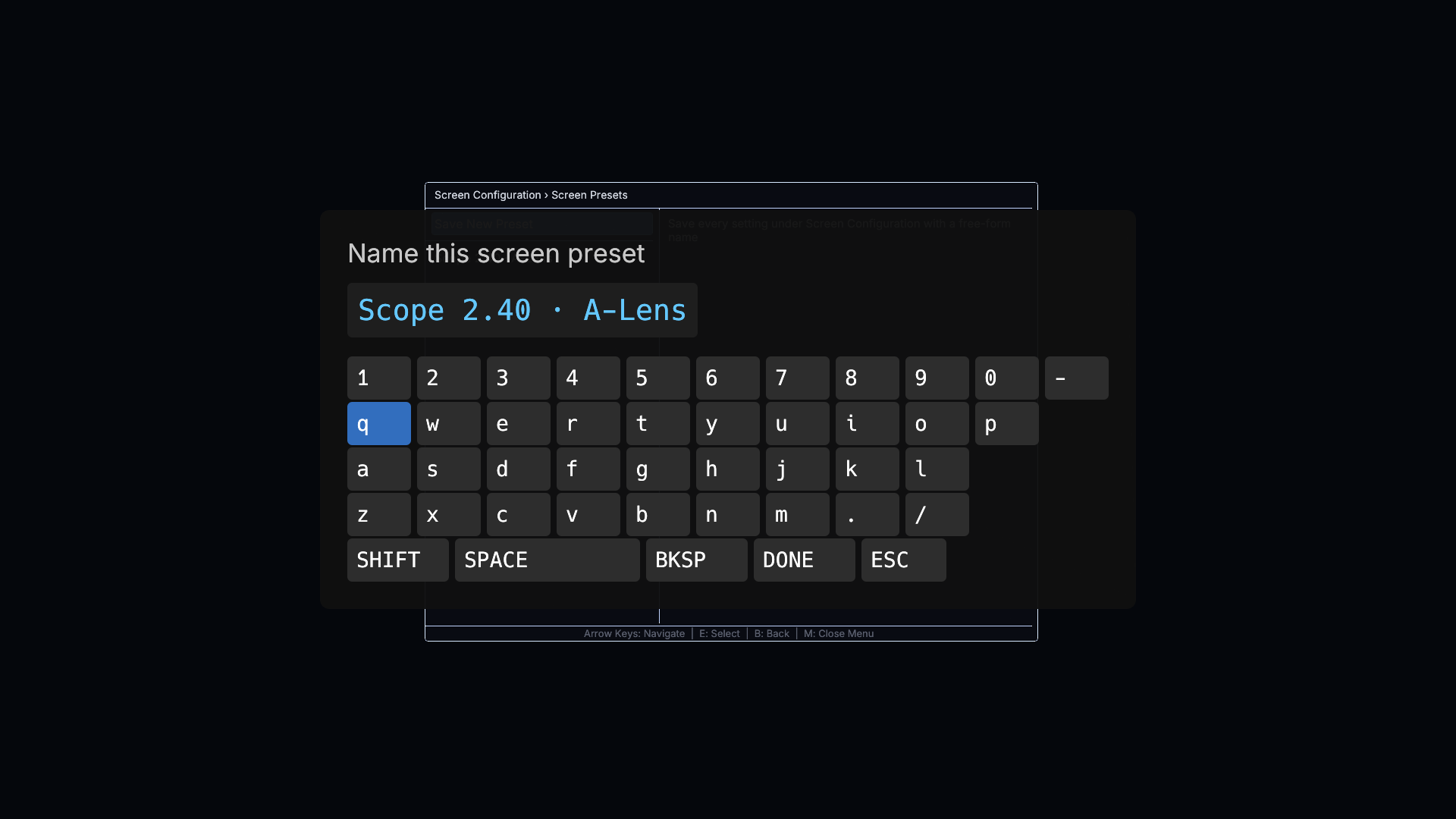
- Use the on-screen keyboard to enter a name.
- Select DONE.
VoidVideo suggests a name such as Screen Preset 1, but the name is free-form. Use BKSP to remove characters, SHIFT for the next uppercase letter, and SPACE between words. Two presets cannot use the same name.
Use a saved preset
Open Screen Configuration → Presets, choose the preset name, and then choose an action:
| Action | What it does |
|---|---|
| Load Preset | Applies the complete saved Screen Configuration. |
| Update from Current | Replaces the saved values with the settings currently shown in Screen Configuration. |
| Rename | Opens the on-screen keyboard with the current name ready to edit. |
| Delete | Immediately removes the saved preset. |
Loading a preset applies its screen geometry and content-presentation settings together. It does not create separate files: all named presets are retained with the rest of the VoidVideo configuration.
Keyboard controls
| Control | Action |
|---|---|
| Arrow keys | Move around the keyboard |
| Enter / Numpad Enter / E | Press the highlighted key |
| B / Backspace | Delete the last character |
| Esc / M | Cancel naming and close the keyboard |