Advanced Tone Mapping
Open Main Menu → HDR Settings → Advanced Tone Mapping. Select Void under Tone Curves to use the controls below. For a built-in curve, use the Libplacebo submenu instead.
Void curve controls
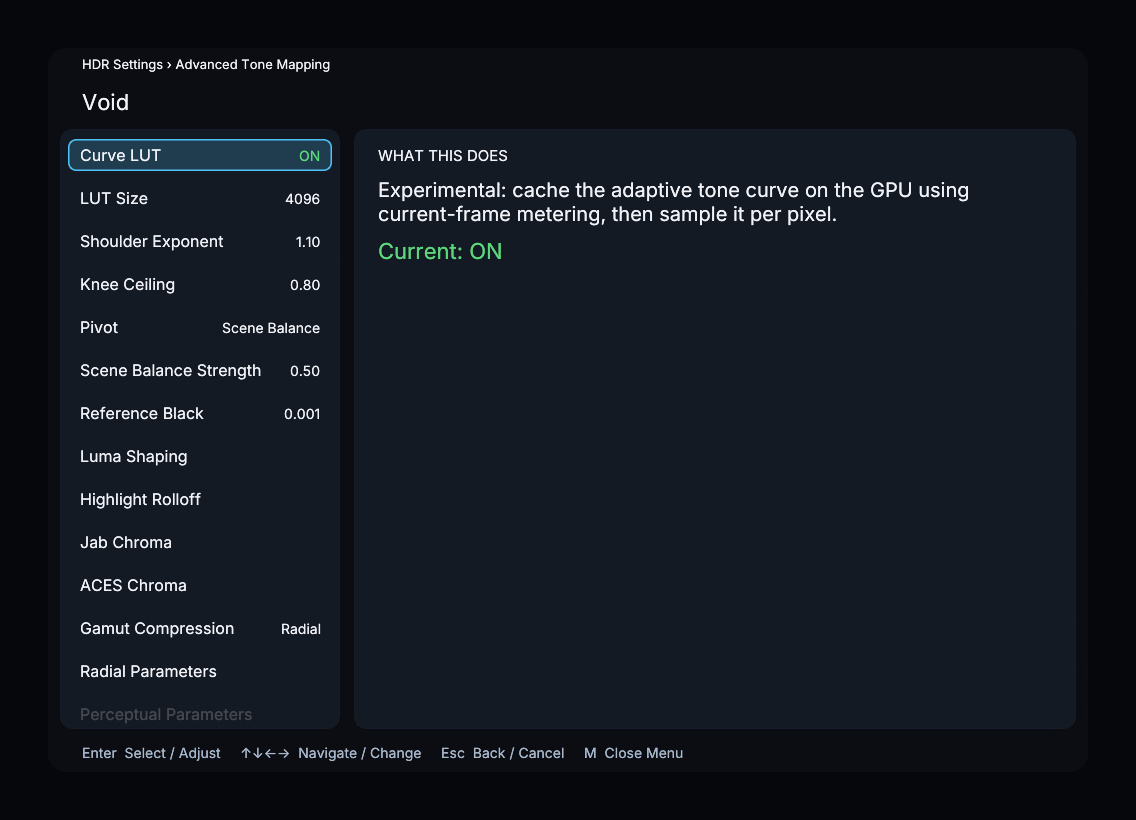
| Control | Default | What it changes |
|---|---|---|
| Curve LUT | On | Experimental GPU cache of the adaptive tone curve, using current-frame metering |
| LUT Size | 4096 | Enabled when Curve LUT is on; choose 256, 512, 2048, or 4096 samples |
| Shoulder Exponent | 1.10 | How quickly the shoulder approaches peak white; range 1.00–2.00 |
| Knee Ceiling | 0.80 | Highest midtone pivot; range 0.30–0.90 |
| Pivot | Scene Balance | Brightness measurement that anchors the curve |
| Scene Balance Strength | 0.50 | Enabled with the Scene Balance pivot; controls movement from Average toward P75 when highlights skew the measurement |
| Reference Black | 0.001 nits | Display black level; range 0.000–1.000 nits |
Pivot offers P50, P75, P90, P95, P99, Peak, Avg, Log Avg, Min Avg/P75, Adaptive, and Scene Balance.
Reference White is a shared control on the main HDR Settings page, not inside the Void submenu.
Luma Shaping
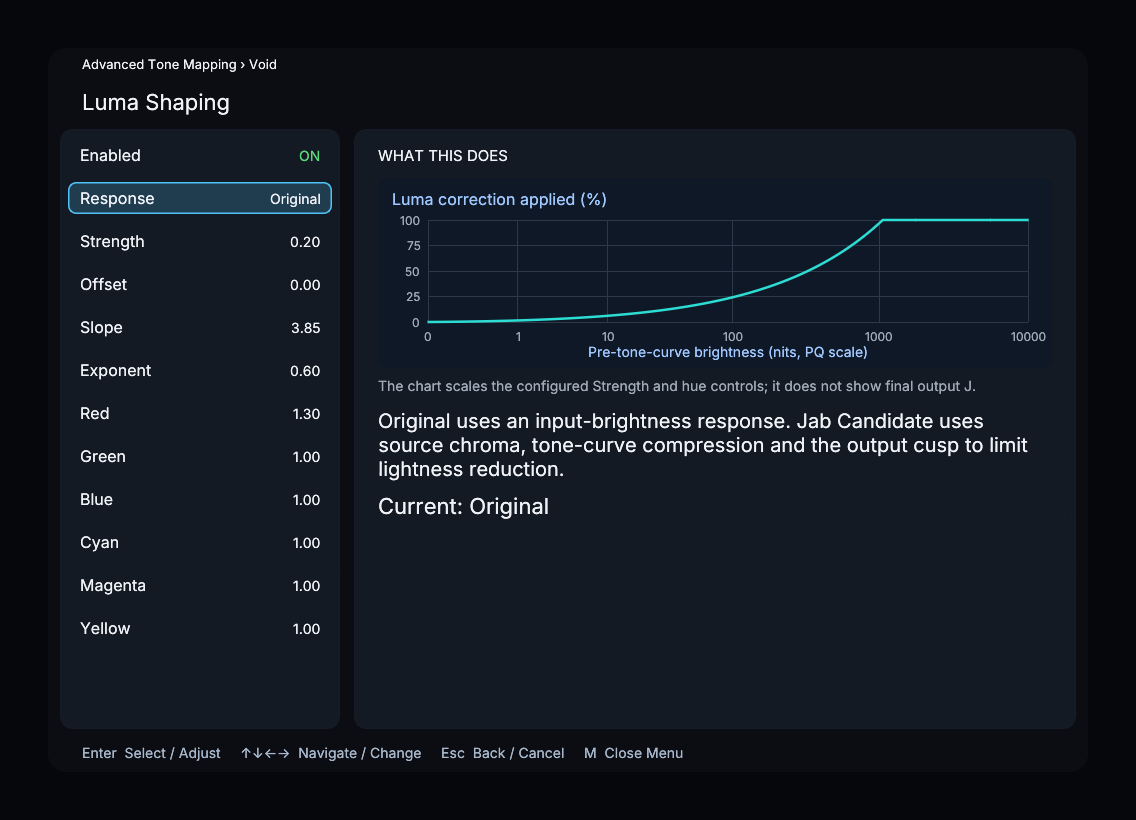
Luma Shaping reduces the lightness of colorful pixels after tone mapping without directly scaling chroma. Enabled turns the stage on or off, and Strength sets the overall reduction. Red, Green, Blue, Cyan, Magenta, and Yellow multiply the reduction around each hue; 1 keeps the base amount.
Response selects Original (the default) or Jab Candidate while Luma Shaping is enabled. Strength and the hue controls apply to both.
With Original, Offset, Slope, and Exponent control how much correction applies as input brightness rises. The weighting is Offset + Slope × x^Exponent, limited to 0–1, where x is input peak-channel brightness divided by 10,000 nits. An Exponent of 1 is linear in nits; lower values apply more correction earlier, and higher values concentrate it in highlights. The preview’s brightness axis is PQ-spaced.
Jab Candidate uses source Jab chroma, tone-curve compression, and the output cusp to limit lightness reduction. Its controls are:
| Control | What it changes |
|---|---|
| Cusp Onset | Brightness at which the reduction budget starts, as a fraction of cusp J |
| Cusp Transition Width | Smooth onset width, as a fraction of cusp J |
| Reduction Limit | How quickly the allowed reduction grows above the onset |
| Curvature | Additional upward curvature in the reduction budget toward highlights |
| Full Activation | Source-to-mapped J compression fraction at which activation reaches full strength |
Highlight Rolloff
Enabled turns on a gradual fade of bright colors toward white. Amount sets the maximum blend, and Shape controls its progression. Higher Shape values delay the fade. Amount and Shape are enabled only while this stage is enabled.
Jab Chroma
Enabled applies a chroma adjustment based on the available color range before and after tone mapping. Strength blends the adjustment: 0% bypasses it, 50% applies half, and 100% applies it fully. The default is 50%. The calculation preserves hue direction in Jab; perceived hue can still change.
ACES Chroma
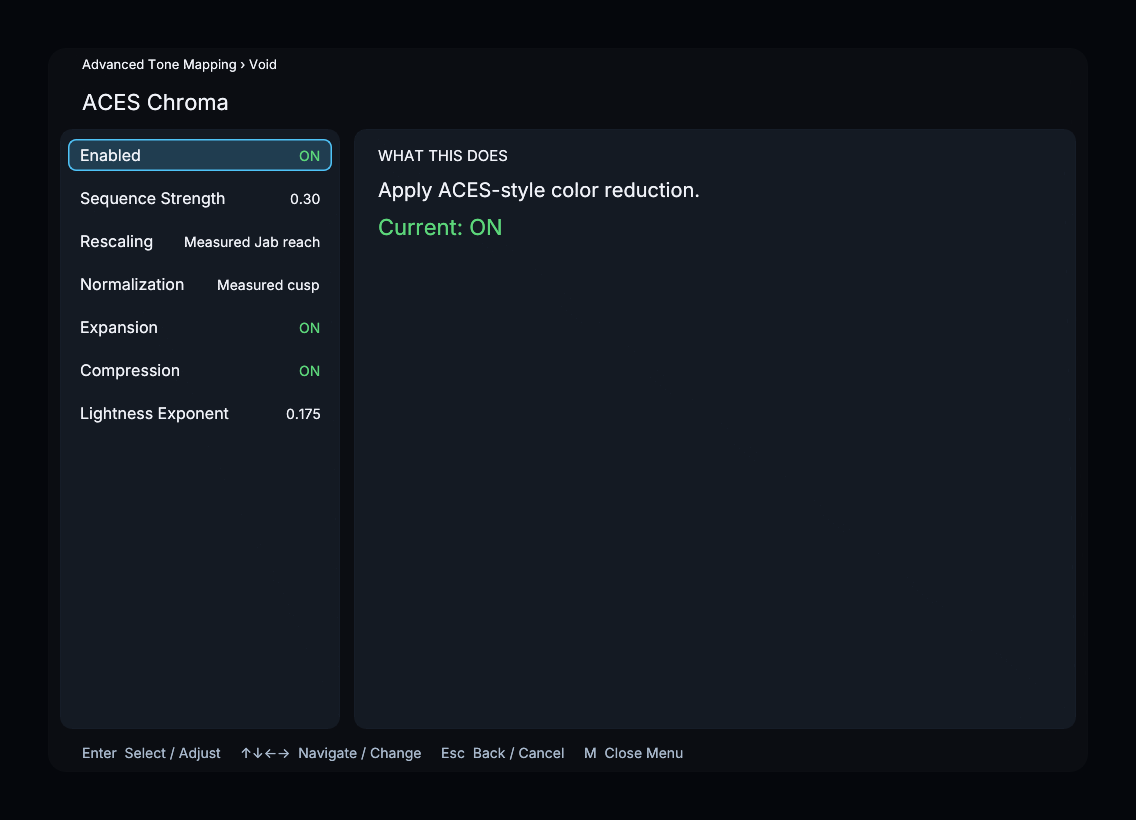
This stage rescales, normalizes, expands, and compresses chroma in Jab.
- Enabled turns the stage on or off.
- Sequence Strength blends the complete chroma change; 0 bypasses it and 1 applies it fully.
- Rescaling selects Off, J ratio power, or Measured Jab reach.
- Normalization selects Reach or Measured cusp.
- Expansion and Compression enable their respective stages.
- Lightness Exponent affects J ratio power only; Measured Jab reach and Off do not use it.
Gamut Compression
Choose Clip, Radial, Spectra, Minde, Perceptual, or Mixer. The default is Radial. Parameter submenus are enabled for the selected method:
| Method | Submenu controls |
|---|---|
| Radial | Direction Test; Compression Amount, Knee, and Tail Shape for Original soft radial; Compression Angle for Angle (experimental) |
| Spectra | Reach, Reach Distance, Feather, Hue Balance, Highlight Release |
| Perceptual | Tail Allocation |
Direction Test selects Original soft radial, Angle (experimental), or Spectra direction (experimental). The experimental modes use a hard boundary intersection. In Angle mode, Compression Angle is measured below horizontal in J/chroma coordinates: zero preserves J; increasing it lowers J to retain more chroma.
Jab Chart
Enable Jab Chart to inspect a synthetic slice through the tone-mapping stages. Stage selects Input, Tone curve, Luma shaping, Jab chroma, or After gamut. Slice Brightness, Rotation, Tilt, and Chroma Span control the view. Slice Brightness describes the input slice, not output luminance.
Set Diagnostic View to Off to see the chart; other diagnostic views take priority.
Diagnostic View and reset
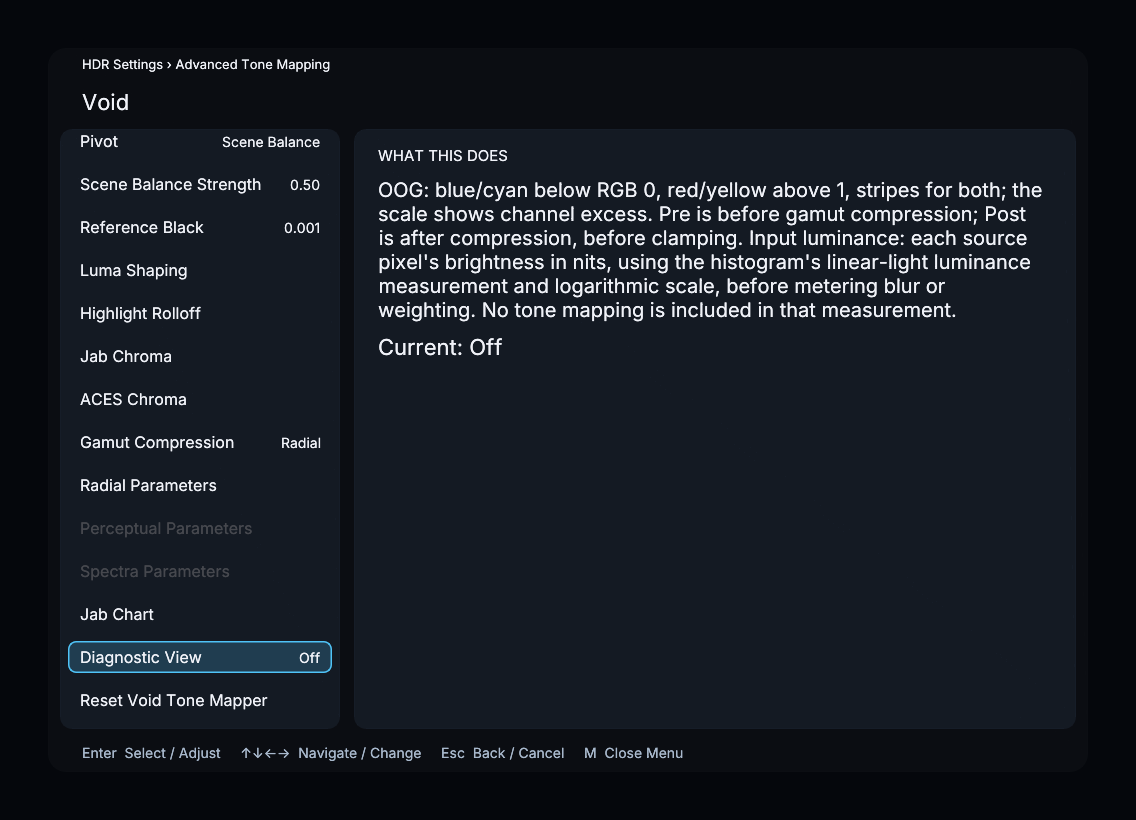
Diagnostic View offers Off, Pre-compression, Post-compression, and Input luminance. The compression views highlight RGB values below zero or above one; Input luminance shows source brightness in nits before tone mapping.
Reset Void Tone Mapper restores the Void plugin’s controls. Shared HDR settings have their own reset on the main HDR page.
Libplacebo
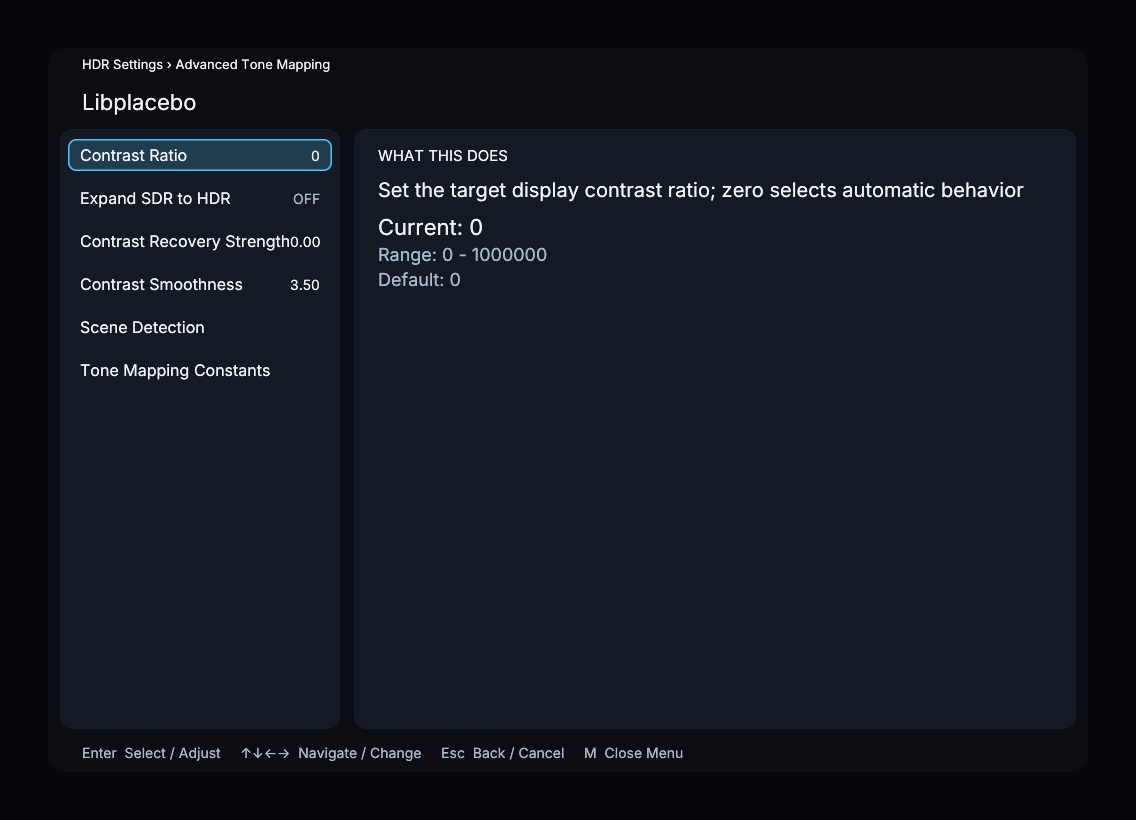
For a built-in tone curve, this submenu contains Contrast Recovery Strength, Contrast Smoothness, Scene Detection, and Tone Mapping Constants. Scene Detection includes Peak Detection, Smoothing Period, Scene Threshold Low, Scene Threshold High, Percentile, and Black Cutoff. These controls do not apply while Void is selected.