Software Updates
Open Main Menu → System Information → Software Updates. Version identifies the running build, and Status shows update progress or the result of the last check.
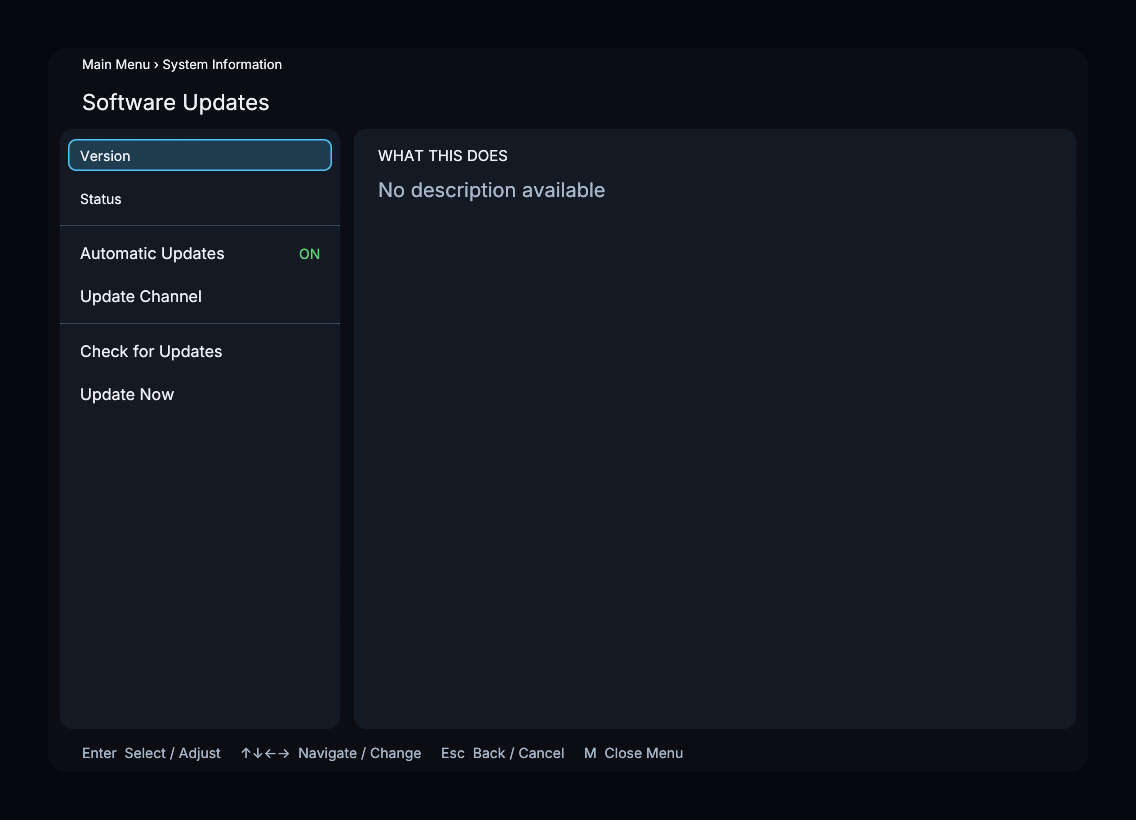
This screenshot shows a develop-channel example. Select Server Build is not shown on beta or stable.
Controls
| Control | What it does |
|---|---|
| Automatic Updates | Enables installation of available updates at startup; on by default |
| Update Channel | Selects from the channels returned by the update server |
| Check for Updates | Checks for an available compatible update |
| Update Now | Downloads and installs available updates; core updates require a restart |
| Select Server Build | Appears on the develop channel and lets you install a specific published build |
Plugin updates can be applied through hot reload. Follow the status shown by the processor when an update needs a restart.
Check and install an update
- Choose Update Channel if you want to change channels.
- Select Check for Updates and read Status.
- Select Update Now to install the available update.
- After any required restart, return here and confirm Version.
On develop, use Select Server Build when you need a particular server build instead of the channel’s latest release. A local development build may report that automatic updates are disabled.